This is an old revision of the document!
1.4.3 Using the Wiki
The Crucible wiki supports both sequential reading and direct navigation. Readers can follow the numbered sections from the Table of Contents, move through parent and child pages, search for a subject, or follow links among related concepts, requirements, architecture content, implementation guidance, and Evidence.
The controls displayed around the page provide access to navigation, page history, backlinks, permanent links, document export, editing, and other wiki functions. The controls available to a user depend on the user's permissions.
For Readers
Readers can navigate the wiki through the page hierarchy, page Table of Contents, parent-page links, cross-references, and page controls.
Navigation Tree
The navigation tree displays the wiki hierarchy. Folder icons identify namespaces that contain child pages. Page icons identify individual wiki pages. The plus and minus controls expand or collapse parts of the hierarchy.
The highlighted entry identifies the page currently displayed.
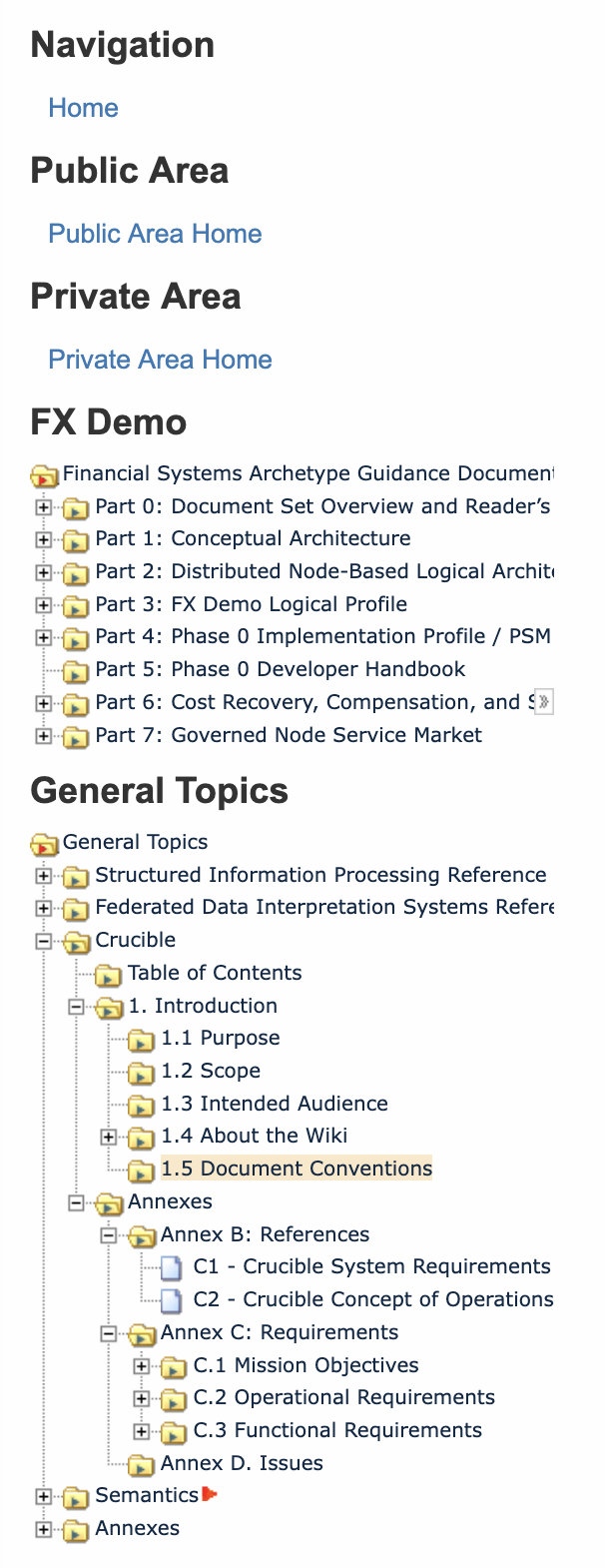
Figure 1.4.3-1: Crucible navigation tree
The navigation tree allows readers to:
-
Expand or collapse sections of the wiki
-
Move between parent and child pages
-
Identify the location of the current page within the publication
-
Navigate directly to another section without returning to the main Table of Contents
Page Table of Contents
A page containing multiple headings displays a local Table of Contents. The local Table of Contents links directly to the headings within the current page.
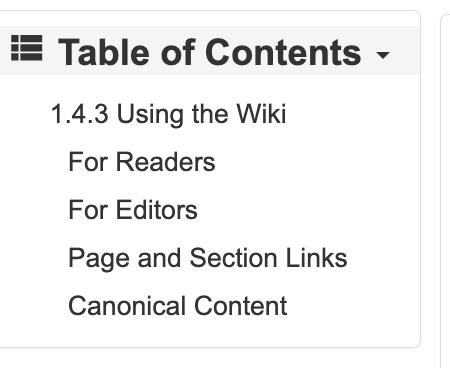
Figure 1.4.3-2: Page Table of Contents
The local Table of Contents differs from the publication-wide Table of Contents. The publication-wide Table of Contents identifies pages throughout the Crucible wiki, while the local Table of Contents identifies sections within the current page.
Page Controls
Reader controls appear near the page or along the right side of the screen.

Figure 1.4.3-3: Reader page controls
Depending on the installed plugins and the reader's permissions, these controls can provide access to functions such as:
-
Sharing the current page
-
Opening a feed
-
Subscribing to page changes
-
Printing the page
-
Copying or opening a permanent page link
A vertical toolbar can provide additional page functions.

The exact controls displayed depend on the page, installed plugins, and permissions assigned to the reader.
Trace and Backlinks
The Trace display identifies recently visited pages and provides direct access to those pages.

Figure 1.4.3-5: Trace display
Backlinks identify pages that contain a link to the current page. Backlinks support Traceability by allowing readers to identify where a requirement, controlled term, architecture element, or other subject is referenced.
For Editors
Authorized editors receive additional controls for creating and maintaining wiki content.

Figure 1.4.3-6: Editor toolbar
Depending on the editor's permissions, the toolbar can provide access to functions such as:
-
Editing the current page
-
Reviewing the page history
-
Viewing backlinks
-
Creating a page
-
Deleting a page
-
Exporting the page
-
Moving or renaming a page
-
Returning to the top of the page
Editors can also:
-
Edit an individual section
-
Preview changes before saving
-
Provide an edit summary
-
Compare revisions
-
Restore an earlier revision when authorized
-
Add links to controlled terms, requirements, and related content
-
Include canonical content from another page through transclusion
-
Maintain parent and child navigation
-
Record unresolved matters in the applicable Issues section
-
Follow the established namespace, heading, page-structure, and copyright conventions
Editors should link to canonical content rather than reproduce independently maintained copies. When content must appear in more than one operational context, editors should use a link or transclusion whenever practical.
Editors should preserve stable page namespaces after other pages or external artifacts begin referencing them. A displayed page title can change without changing its namespace when retaining the existing URI avoids broken links.
Page and Section Links
A link to a wiki page uses the page's namespace:
[[dido:02-crusible:01-introduction:01-04-how-to-use-this-wiki:01-04-01-why-a-wiki|1.4.1 Why a Wiki]]
A link can also reference a specific section within a page:
[[dido:02-crusible:01-introduction:01-04-how-to-use-this-wiki:01-04-01-why-a-wiki#Traceability|Traceability]]
Section index pages use a trailing start page. Individual leaf pages omit a trailing start from their namespaces.
Canonical Content
The wiki maintains controlled terms, requirements, and other authoritative content on canonical pages. Other pages should link to or transclude that content rather than create independent copies.
For example, a page can display the current Statement from a canonical requirement page by using:
{{section>REQUIREMENT_NAMESPACE#Statement&noheader&nofooter&noeditbtn}}
This approach preserves Traceability and ensures that readers see the maintained requirement Statement wherever it is referenced.
© 2026 Dido Solutions, Inc. and Jackrabbit Consulting, Inc.